Protecting Your Messages with 2FA and Secure Login
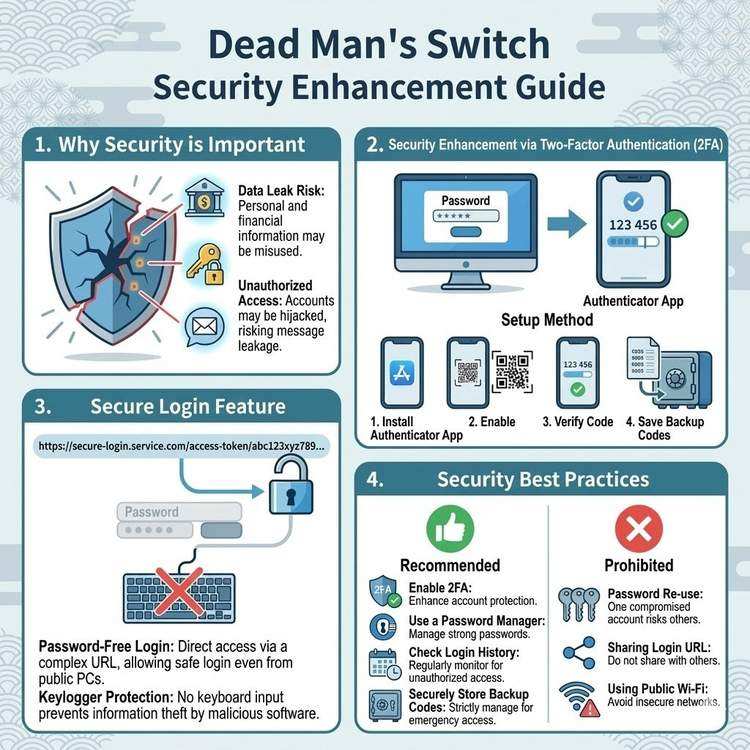
Why Security Matters
Dead Man's Switch stores highly sensitive information, including:
- Bank account details
- Passwords and login credentials
- Insurance policy information
- Personal messages
- Information meant only for family
If this information falls into the wrong hands, it could lead to serious consequences.
Real Risks with Password-Only Protection:
Scenario 1: Password Breach
 → Unauthorized access
 → Message contents viewed by strangers
 → Bank account information exploited

Scenario 2: Phishing Attack
 → Password entered on fake site
 → Account takeover
 → Message contents altered
With 2FA Enabled:
Password + Smartphone Authentication Code
 ↓
Even if password is compromised,
login impossible without smartphone
 ↓
Dramatically improved security
What is Two-Factor Authentication (2FA)?
Basic Mechanism
Two-Factor Authentication verifies identity using two different factors.
The Three Authentication Factors:
-
Knowledge Factor: Something you know
- Password
- PIN code
- Secret question answers
-
Possession Factor: Something you have
- Smartphone
- Security key
- Authentication app
-
Inherence Factor: Something you are
- Fingerprint
- Face recognition
- Iris scan
2FA Combination:
Password (knowledge factor)
    +
Smartphone authentication code (possession factor)
    =
Two-Factor Authentication
Dead Man's Switch 2FA Methods
Dead Man's Switch supports the following 2FA methods:
1. Authenticator App Method (Recommended)
Compatible apps:
・Google Authenticator
・Authy
・Microsoft Authenticator
・Other TOTP-compatible apps

Features:
✅ Works offline
✅ Most secure method
✅ Free to use
2. Email Authentication Method
How it works:
Authentication code sent to registered
email address during login

Features:
✅ No special app required
✅ Easy setup
⚠️ Depends on email account security
3. Backup Code Method
How it works:
10 pre-generated codes to save
Use when smartphone is lost

Features:
✅ Emergency recovery option
✅ Single-use only
⚠️ Requires secure storage
Setting Up 2FA: Step-by-Step Guide
Step 1: Install Authentication App
Recommended App: Google Authenticator
For iOS (iPhone):
1. Open App Store
2. Search for "Google Authenticator"
3. Tap "Get"
4. Installation complete
For Android:
1. Open Google Play Store
2. Search for "Google Authenticator"
3. Tap "Install"
4. Installation complete
Other Recommended Apps:
- Authy: Syncs across multiple devices (convenient but slightly less secure)
- Microsoft Authenticator: Great integration with Microsoft accounts
- 1Password: Integrated with password management
Step 2: Enable 2FA in Dead Man's Switch
Setup Procedure:
1. Log in to Dead Man's Switch
   ↓
2. Click "Settings" in top right of dashboard
   ↓
3. Select "Security" tab
   ↓
4. Click "Enable Two-Factor Authentication"
   ↓
5. QR code is displayed
Step 3: Scan QR Code
On Your Smartphone:
1. Open Google Authenticator app
   ↓
2. Tap "+" button in bottom right
   ↓
3. Select "Scan QR code"
   ↓
4. Point camera at QR code on computer screen
   ↓
5. "Dead Man's Switch" entry is added
   ↓
6. 6-digit code displays (refreshes every 30 seconds)
If QR Code Won't Scan:
Select "Manual entry"
 ↓
Enter displayed secret key
Example: JBSWY3DPEHPK3PXP

Time-based: ON
Account name: Dead Man's Switch
Step 4: Enter and Verify Authentication Code
On Your Computer:
1. Enter 6-digit code displayed on smartphone
   Example: 123456
   ↓
2. Click "Verify"
   ↓
3. "Two-factor authentication enabled" message appears
Step 5: Save Backup Codes (CRITICAL)
What are Backup Codes:
- Emergency recovery option when smartphone is lost
- 10 single-use codes are generated
- Each code can only be used once
How to Save:
Copy the 10 codes displayed:

1. ABC123DEF456
2. GHI789JKL012
3. MNO345PQR678
...(10 codes total)

[Choose Storage Location]

Method A: Paper Storage (Recommended)
・Write codes on paper or in notebook
・Store in safe or locked drawer
・Tell family where codes are stored

Method B: Password Manager
・1Password "Secure Notes"
・Bitwarden "Notes"
・Stored in encrypted state

Method C: USB Drive
・Save in text file
・Store USB in safe
・Don't create multiple copies

⚠️ Never Do This:
❌ Save in smartphone notes app
❌ Save unencrypted in cloud
❌ Send via email
Login Process After Enabling 2FA
Standard Login
Procedure:
1. Access Dead Man's Switch login page
   ↓
2. Enter email address and password
   ↓
3. Click "Login"
   ↓
4. 2FA code entry screen appears
   ↓
5. Open Google Authenticator on smartphone
   ↓
6. Enter displayed 6-digit code
   ↓
7. Login complete
Time Required: Approximately 30 seconds
Tips:
- Authentication code refreshes every 30 seconds
- If time is running out, wait for next code
- Enter carefully, no need to rush
If Smartphone is Lost
Use Backup Code:
1. Enter email and password as normal
   ↓
2. On 2FA code entry screen,
   click "Use backup code"
   ↓
3. Enter one of your saved backup codes
   ↓
4. Login complete
   ↓
5. Immediately reconfigure 2FA in "Settings"
Important: Used backup codes become invalid. Check remaining codes and regenerate when running low.
What is Secure Login?
Basic Mechanism
Secure login is a special login method using a long random URL.
Standard Login URL:
https://entrust-this.com/login
Secure Login URL:
https://entrust-this.com/secure-login?token=
f90fd0a855e219afec441b7f4d890809989dfa1510575ccd01018f224624e20c
Features:
- Only accessible to those who know the URL
- No password entry required (2FA still required)
- Token is 256-bit random string
- Impossible to guess (resistant to brute force attacks)
Benefits of Secure Login
1. Reduced Password Exposure Risk
Standard login:
Enter password every time
 ↓
Risk of keylogger (malware that records keystrokes)
 ↓
Password could be stolen

Secure login:
Just click URL
 ↓
No password entry
 ↓
Avoids keylogger threats
2. Safe Login When Traveling
Scenario: Internet cafe or shared computer
・Can't use password manager
・Keyboard input might be observed
・Browser history concerns

Secure login:
・Scan QR code on smartphone
・Or enter shortened URL
・Safe without password entry
3. Quick Emergency Login
Scenario: Reminder email received
"Messages will send in 24 hours"

Secure login:
Tap bookmark on smartphone
 ↓
Enter authentication code (2FA)
 ↓
Login complete immediately (5 seconds)
Setting Up Secure Login
Step 1: Generate Secure Token
Procedure:
1. Log in to dashboard
   ↓
2. Click "Secure Token" in left menu
   ↓
3. Click "Generate New Token" button
   ↓
4. Secure login URL is displayed
Display Example:
Secure Login URL:
https://entrust-this.com/secure-login?token=
f90fd0a855e219afec441b7f4d890809989dfa1510575ccd01018f224624e20c

QR Code:
[QR code image]

Short URL (Optional):
https://ent-this.com/s/abc123
Step 2: Save the URL
Method 1: Smartphone Bookmark (Recommended)
For iPhone:
1. Open secure login page in Safari
2. Tap "Share" button at bottom
3. Select "Add to Home Screen"
4. Rename to "DMS Emergency Login" or similar
5. Tap "Add"
 ↓
Icon added to home screen
For Android:
1. Open secure login page in Chrome
2. Tap menu (⋮) in top right
3. Select "Add to Home screen"
4. Set name
5. Tap "Add"
Method 2: QR Code Storage
1. Save QR code as image
2. Print on paper
3. Store in safe
4. Scan with smartphone in emergency
Method 3: Password Manager
Save in 1Password, Bitwarden, etc.:
・Title: Dead Man's Switch Secure Login
・URL: [Secure Login URL]
・Tags: Emergency, Important
Step 3: Regenerate Periodically (Recommended)
Security Best Practice:
Recommended Frequency: Every 6 months to 1 year

Procedure:
1. Click "Generate new token"
2. New URL is issued
3. Old token becomes invalid
4. Update stored locations
When to Regenerate:
- Regular security maintenance
- Smartphone lost or replaced
- Possibility URL was seen by others
Security Best Practices
What You Should Do (Recommended)
✅ 1. Always Enable 2FA
Reason: Password alone is insufficient
Effect: Reduces unauthorized access risk by 99%+
✅ 2. Use Strong Passwords
Good Password Requirements:
・12+ characters
・Mix of uppercase, lowercase, numbers, symbols
・Not dictionary words
・Not reused from other services

Examples:
Bad: password123
Good: Kf8$mP2@nQ9#vL3!
✅ 3. Use Password Manager
Recommended Tools:
・1Password (paid, feature-rich)
・Bitwarden (free plan available)
・LastPass (limited free plan)

Benefits:
・Auto-generate strong passwords
・Securely manage all passwords
・Control everything with one master password
✅ 4. Check Login History Regularly
How to Check:
Dashboard > Security > Login History

Check For:
・Unfamiliar IP addresses
・Login at unusual times
・Access from foreign countries
✅ 5. Store Backup Codes Securely
Storage Options:
・Safe
・Locked drawer
・Password manager

Tell Family:
"If I can't log in,
 backup codes are in the safe"
What You Must Never Do (Prohibited)
❌ 1. Reuse Passwords
Risk:
One service compromised
 ↓
All accounts at risk
❌ 2. Save Passwords in Notes App
Risk:
Smartphone stolen
 ↓
All passwords compromised
❌ 3. Share Secure Login URL
Risk:
URL discovered
 ↓
Account access granted to others
❌ 4. Important Operations on Public Wi-Fi
Risk:
Communications could be intercepted
 ↓
Passwords and authentication stolen

Solution:
・Use VPN
・Or use mobile data
❌ 5. Disable 2FA
Risk:
Password-only protection
 ↓
Unauthorized access risk dramatically increases
Troubleshooting
Q1. Authentication Code Doesn't Work
Causes and Solutions:
Cause 1: Smartphone clock is wrong
Solution:
・Settings > Date & Time
・Turn "Automatic" ON

Cause 2: Code expired
Solution:
・Wait for new code to appear
・Enter with time to spare

Cause 3: Multiple accounts exist
Solution:
・Verify correct account in Google Authenticator
・Select "Dead Man's Switch" entry
Q2. Lost Smartphone or Changed Devices
Solutions:
Method 1: Use backup code
1. Log in with saved backup code
2. Disable 2FA temporarily
3. Reconfigure on new smartphone

Method 2: Contact support
1. Contact via support form
2. Identity verification (email from registered address)
3. Support team resets 2FA
Q3. Lost Backup Codes Too
Solution:
Contact Support Team:
support@entrust-this.com

Required Information:
・Registered email address
・Account creation date
・Last login date/time
・Recipient email addresses for messages

Account will be reset after identity verification
Conclusion: Start Securing Today
You can start protecting your important messages today.
Three Actions You Can Take Now:
-
Enable Two-Factor Authentication (15 minutes)
- Install Google Authenticator
- Scan QR code
- Save backup codes
-
Set Up Secure Login (5 minutes)
- Generate secure token
- Add to smartphone home screen
-
Strengthen Your Password (10 minutes)
- Install password manager
- Change to strong password
Security Impact:
Before:
Unauthorized access possible with password breach

After:
Password + Smartphone + 2FA
 ↓
Unauthorized access risk reduced by 99%+
Start securing your messages to loved ones today.
Share This Article
About the Author
偽弟 (Gitei)
@danna6583973613 years in IT industry, 11 years as PM/PO. Designed and operated systems with 100M monthly visits, managed teams of 40+ members. Expert in E-commerce and enterprise systems, proficient in cryptographic protocols and authentication/authorization system design. Utilizes Claude Code and Gemini AI for secure, high-quality code implementation.
Learn More About the AuthorRelated Articles
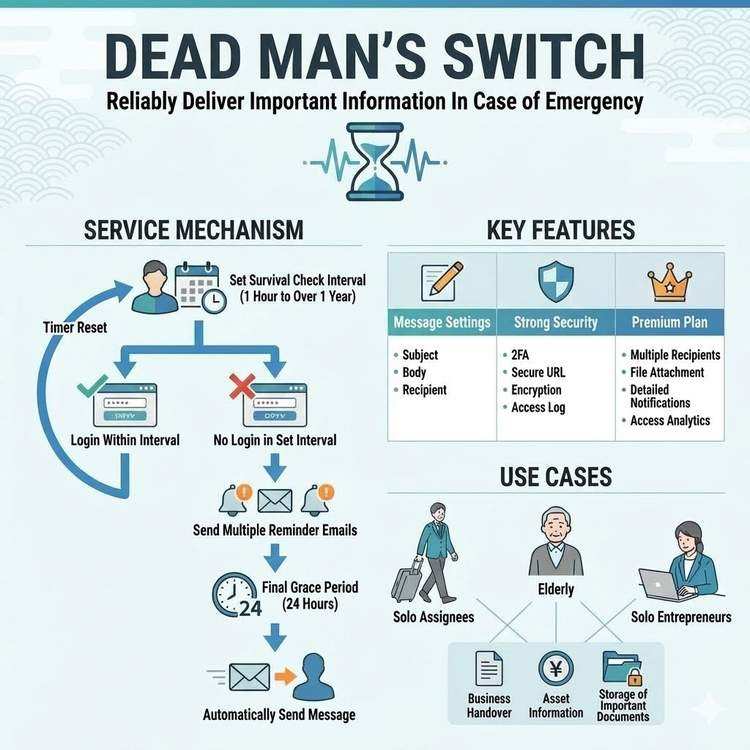
How Dead Man's Switch Works and How to Use It
A detailed explanation of Dead Man's Switch, from its technical mechanisms to practical usage. Understand the life check system and automatic delivery mechanism to use the service with confidence.
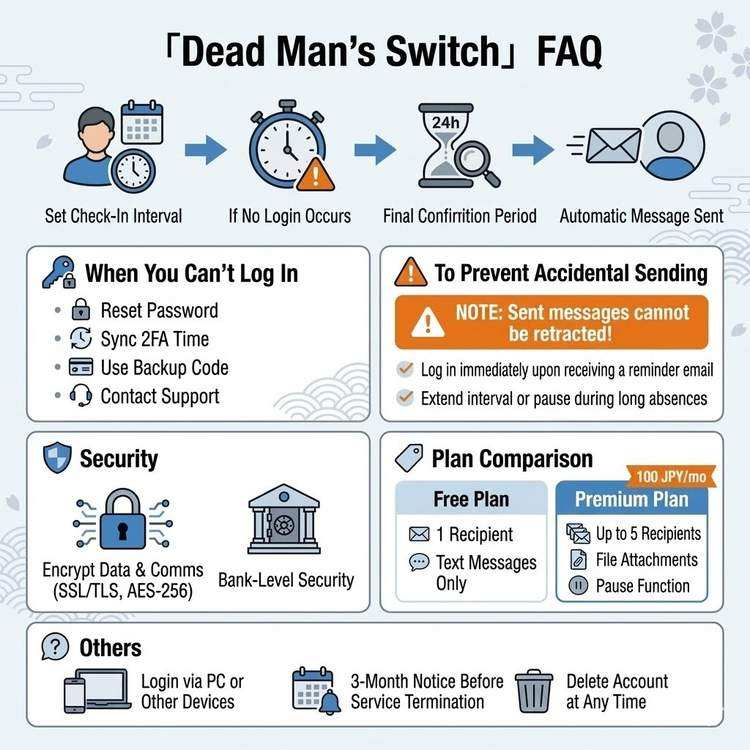
FAQ: What If I Can't Log In? How to Prevent Accidental Sending
Answers to common questions when using Dead Man's Switch. Learn how to handle login issues, prevent accidental message sending, and troubleshoot problems.
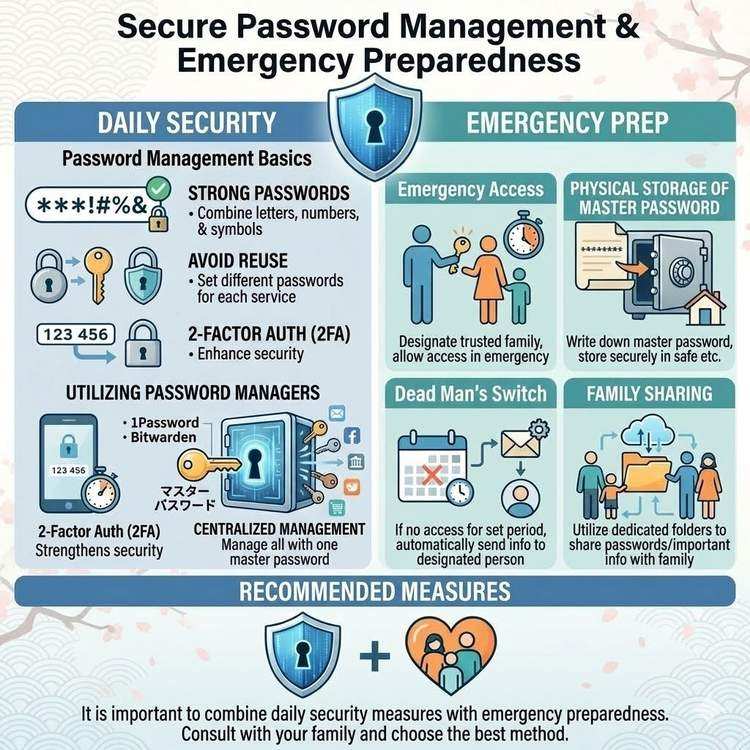
Password Management and Safe Emergency Sharing Methods
Learn how to securely manage and share passwords so your family can access critical information in an emergency. Discover practical techniques that balance security and convenience.