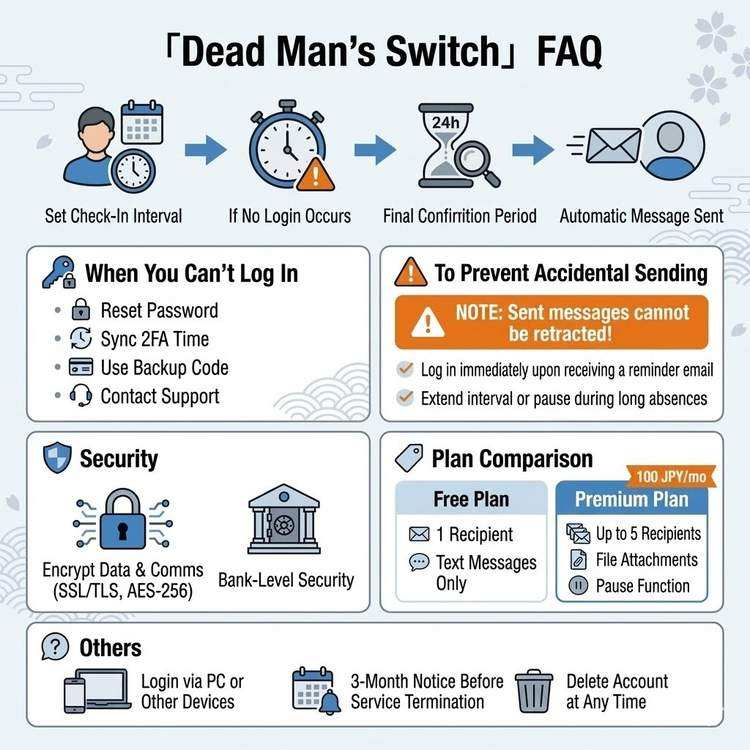
FAQ: What If I Can't Log In? How to Prevent Accidental Sending
Introduction
This page answers frequently asked questions about using Dead Man's Switch.
FAQ Categories:
- Login & Account Issues
- Preventing Accidental Sending
- Message Delivery
- Security
- Plans & Billing
- Other Topics
Category 1: Login & Account Issues
Q1. I can't log in. What should I do?
A. Follow these steps:
Step 1: Check Your Password
Common mistakes:
・Upper/lowercase entry errors
・Full-width/half-width character confusion
・Caps Lock is ON
・Num Lock is OFF (when using number pad)

Solutions:
・Make password visible while entering
・Copy & paste from password manager
Step 2: Reset Password
1. Click "Forgot password?" on login page
2. Enter registered email address
3. Click link in email received
4. Set new password
5. Log in
Step 3: 2FA Issues
Problem: Authentication code doesn't work

Causes and solutions:
1. Smartphone clock is wrong
   → Settings > Date & Time > Auto-set ON

2. Authentication code expired
   → Wait for new code to appear

3. Entering code from different service
   → Verify "Dead Man's Switch" in Google Authenticator
Step 4: Use Backup Code
If smartphone is lost:
1. Click "Use backup code" on login screen
2. Enter saved backup code
3. After login, immediately reconfigure 2FA
Step 5: Contact Support
If above steps don't work:
・Contact via support form
・Send from registered email address
・Explain situation in detail

Support team will assist after identity verification
Q2. I want to change my email address
A. You can change it in account settings:
Procedure:
1. Log in to dashboard
2. Click "Settings" in top right
3. Select "Account Information" tab
4. Click "Change email address"
5. Enter new email address
6. Confirmation email will be sent
7. Click link in new email address
8. Change complete
Important Notes:
- Change isn't complete until you click link in confirmation email
- Check spam folder if email doesn't arrive
- Old email address becomes invalid immediately
Q3. I forgot my password and can't access my registered email
A. Contact support team:
Required Information:
1. Previously used email address (as much as you remember)
2. Account creation date
3. Check interval that was set
4. Recipient email addresses for messages
5. Last login date/time (if you remember)
Identity Verification Process:
1. Send above information to support
2. Answer additional verification questions
3. Provide ID (in some cases)
4. Account recovery after verification
Processing Time:
- Weekdays: 1-3 business days
- Weekends/holidays: 3-5 business days
Category 2: Preventing Accidental Sending
Q4. I forgot to log in and messages might send accidentally. What should I do?
A. Take immediate action:
Emergency Response (When Reminder Email Received):
[If Within 24 Hours]

Step 1: Log in immediately
・Use smartphone bookmark
・Use secure login URL
・Smartphone login works even without PC

Step 2: Verify after login
・Check last access date/time
・Verify next check deadline
・Review message content (update if needed)

Step 3: Future prevention
・Set reminders
・Adjust check interval to longer period
・Add shortcut to smartphone home screen
Prevention Strategies:
1. Set smartphone reminders
   Example: Every Monday 9:00 AM "Dead Man's Switch Login"

2. Add recurring calendar event
   Example: Weekly event in Google Calendar

3. Tell family
   "I'm using Dead Man's Switch.
    Please let me know if you receive an emergency email"

4. Match check interval to your routine
   Daily login: 1-3 day setting
   Weekends only: 7 day setting
   Travel frequently: 14 day setting
Q5. What if I can't log in for extended period due to travel or hospitalization?
A. Change settings in advance:
Method 1: Extend Check Interval
Before traveling:
1. Dashboard > Settings
2. Extend check interval
   Example: 7 days → 30 days

After returning:
1. Log in immediately
2. Return check interval to original
   Example: 30 days → 7 days
Method 2: Pause Feature (Premium Plan)
1. Dashboard > Settings > Pause
2. Set pause duration
   Example: 2 weeks
3. Automatically resumes after pause period
Method 3: Ask Family to Log In
Preparation:
1. Share secure login URL with family
2. Provide 2FA backup code if needed
3. Request login by specific date

Security Note:
・Only trustworthy family members
・Recommend changing password after
・Regenerate secure token
Method 4: Pre-Login
Log in just before departure:
・Resets next check deadline
・Verify it covers travel duration

Example:
14-day trip → Log in before departure
→ Won't send for 14 days
Q6. Can I cancel messages after accidental sending?
A. Messages cannot be cancelled after sending.
Why Cancellation Isn't Possible:
Reason:
Dead Man's Switch's fundamental purpose is
"reliable message delivery"

If cancellation were possible:
・Third parties could abuse cancellation
・Messages might not deliver in real emergencies
Strategies to Prevent Accidental Sending:
Strategy 1: Pay attention to reminder emails
・Notification 3 days before deadline
・Notification 1 day before deadline
・Final notice (24-hour grace period)

Strategy 2: Set sufficient grace period
・Set longer check intervals
・Schedule with margin

Strategy 3: Set emergency contact
・Include "Contact me immediately if accidental" in message
・Include family phone number

Strategy 4: Design message content carefully
・"If you receive this, contact me first"
・Start with less sensitive information
If Accidental Sending Occurs:
1. Contact recipients immediately
   ・Call directly by phone
   ・"This was accidental. Please ignore"

2. Ask recipients to delete
   ・Delete email
   ・Delete attachments too

3. Apologize and explain
   ・Explain how service works
   ・Mention periodic checking is required
Category 3: Message Delivery
Q7. When will messages be sent?
A. Messages send at the following times:
Delivery Timeline:
Step 1: Check interval deadline reached
Final deadline passes after last login

Step 2: Final confirmation period (24 hours)
Emergency notification email sent
"Please log in within 24 hours"

Step 3: After 24 hours
Automatic sending if no login

Step 4: Delivery complete
Sent to all registered recipients
Example:
Setting: 7-day check interval
Last login: January 1, 10:00 AM

January 8, 10:00 AM: Deadline reached
 ↓ Emergency notification sent
January 9, 10:00 AM: No login
 ↓ Messages automatically sent
Q8. Can I change message recipients?
A. You can change recipients anytime:
Procedure:
1. Dashboard > Settings
2. Select "Recipients" tab
3. Click "Edit"
4. Enter new email address
5. Save
Changes take effect immediately.
Multiple Recipients (Premium Plan):
・Up to 5 recipients possible
・Different messages for each recipient
・Priority order can be set
Q9. What if recipient email address is wrong?
A. You'll receive delivery failure notification:
Notification Content:
Subject: Message Delivery Failure Notice

Body:
Delivery to configured recipient
email address failed.

Recipient: xxxxx@example.com
Error: Address does not exist

Please verify email address.
Solution:
1. Log in immediately
2. Correct recipient email address
3. Resend message if needed
Prevention:
・Regularly verify recipient addresses
・Use test send feature (Premium Plan)
・Ask recipients to "confirm you can receive this email"
Q10. Can sent messages be cancelled?
A. Messages cannot be cancelled after sending:
See Q6 above.
Category 4: Security
Q11. My account may have been compromised
A. Take immediate action:
Emergency Response:
Step 1: Change password immediately
1. Log in (if possible)
2. Settings > Security > Change Password
3. Change to strong new password

Step 2: Check login history
1. Settings > Security > Login History
2. Check for unfamiliar access
3. Verify suspicious IP addresses or locations

Step 3: Reconfigure 2FA
1. Temporarily disable
2. Reconfigure with new QR code
3. Reissue backup codes

Step 4: Regenerate secure token
1. Invalidate old secure token
2. Generate new token
3. Update storage locations

Step 5: Verify message content
1. Check for tampering
2. Edit if necessary
Contact Support:
Include this information:
・Date/time of suspicious access
・Login history screenshots
・Details of damage
Q12. Are my messages encrypted?
A. Yes, they are encrypted:
Encryption Details:
1. Communication Encryption (SSL/TLS)
・Encrypts browser-to-server communication
・Prevents third-party eavesdropping

2. Database Encryption (AES-256)
・Message content encrypted in storage
・Messages unreadable even if accessed

3. Password Hashing
・Passwords stored encrypted (hashed)
・Even operators cannot see plain text passwords
Security Level:
Dead Man's Switch security is equivalent
to online banking security standards
Q13. Can operators see my message content?
A. Technically possible, but prohibited by privacy policy:
Operator Policy:
Principle:
・Message content is not viewed
・Privacy is top priority

Exceptions (legal requests only):
・Court orders
・Official law enforcement requests
・Emergency life-threatening situations
What Users Can Do:
For additional security:
1. Encrypt messages with encryption tools
   (PGP, etc.)
2. Paste encrypted text
3. Share decryption key with family separately
Category 5: Plans & Billing
Q14. Is the free plan sufficient? What's different in Premium?
A. Consider the following:
Free Plan is Sufficient For:
✅ One recipient is enough
✅ Text messages only
✅ Basic features are satisfactory
✅ Want to minimize costs

Example:
・Send to spouse only
・Basic information sharing
Premium Plan is Needed For:
✅ Send individual messages to multiple people
   (spouse, children, parents, etc.)
✅ Attach PDFs or images
   (insurance policies, password lists, etc.)
✅ Need advanced features
   (custom notifications, pause function, etc.)

Example:
・Different content for each family member
・Attach important documents
・Detailed log access
Comparison Table:
| Feature | Free | Premium |
|---------|------|---------|
| Recipients | 1 | Up to 5 |
| Attachments | ❌ | ✅ 10MB |
| Pause Function | ❌ | ✅ |
| Custom Notifications | ❌ | ✅ |
| Detailed Logs | 10 entries | Unlimited |
| Price | $0 | $1/month |
Q15. What are payment methods for Premium plan?
A. Credit card via Stripe:
Accepted Cards:
・Visa
・Mastercard
・American Express
・Discover
Payment Cycle:
・Monthly: $1/month
・Annual: $12/year (no discount)

※ First payment is prorated
Payment Security:
・Payment via Stripe
・Card info managed by Stripe
・Dead Man's Switch doesn't store card numbers
Q16. How do I cancel Premium plan?
A. Cancel anytime:
Procedure:
1. Dashboard > Settings
2. "Plans & Billing" tab
3. Click "Change Plan"
4. Select "Change to Free Plan"
5. Click "Change" on confirmation screen
After Cancellation:
・Immediately changed to free plan
・Only 1 recipient (first one kept)
・Attachments deleted
・Existing messages remain
・No prorated refunds (available until month end)
Category 6: Other Topics
Q17. What if my smartphone breaks?
A. You can still log in from computer:
Solutions:
Method 1: Log in from computer
・Access standard login page
・Log in with email and password
・If 2FA code needed:
  → Use backup code

Method 2: Reconfigure 2FA on new smartphone
1. Log in with backup code
2. Temporarily disable 2FA
3. Reconfigure on new smartphone

Method 3: Contact support
・2FA reset after identity verification
Prevention:
・Store backup codes on paper
・Save in password manager
・Tell family where backup codes are
Q18. What happens if service ends?
A. We'll provide ample advance notice:
Service Termination Process:
1. Minimum 3-month advance notice
   ・Email announcement
   ・Dashboard announcement

2. Data export functionality provided
   ・Download message content
   ・Backup configuration information

3. Alternative service recommendations
   ・List of similar services
   ・Data migration support

4. Service continues until end date
   ・Normal usage possible
   ・New registrations stopped
Current Status:
✅ No plans for service termination
✅ Continuously improving features
✅ User base is growing
Q19. Will messages really send after I actually die?
A. Yes, they will be sent reliably:
How It Works:
Dead Man's Switch Core Principle:
"Periodic life verification"

No login
 ↓
Reminder email (final confirmation)
 ↓
Still no login after 24 hours
 ↓
Automatic sending

This mechanism ensures:
・Messages reliably delivered
・No human intervention needed
・System automatically determines
Track Record:
・Many users currently active
・Proven reliable operation
・High system reliability
For Additional Reliability:
1. Set multiple recipients (Premium)
2. Log in regularly to verify operation
3. Tell family about service existence
Q20. How do I delete my account?
A. You can delete anytime:
Procedure:
1. Dashboard > Settings
2. "Account" tab
3. Click "Delete Account" at bottom
4. Select reason on confirmation screen (optional)
5. Enter password
6. Click "Delete"
Data to be Deleted:
・Account information
・Message content
・Configuration settings
・Login history
・All personal information
Important Notes:
⚠️ Cannot be recovered after deletion
⚠️ Premium plan fees are not refunded
⚠️ Recommend exporting data before deletion
Conclusion: When You Need Help
If this article doesn't resolve your issue, contact support:
Contact Methods:
1. Support Contact Form
   Dashboard > Help > Contact Us

2. Email
   support@entrust-this.com

3. FAQ & Help Center
   Help page on official website
Information to Include:
Including this information helps:
・Registered email address
・Date/time issue occurred
・Error messages (if any)
・Screenshots
・Solutions you've tried
Support Hours:
Weekdays: 9:00 AM - 6:00 PM (your timezone)
Weekends/Holidays: No support
Share This Article
About the Author
偽弟 (Gitei)
@danna6583973613 years in IT industry, 11 years as PM/PO. Designed and operated systems with 100M monthly visits, managed teams of 40+ members. Expert in E-commerce and enterprise systems, proficient in cryptographic protocols and authentication/authorization system design. Utilizes Claude Code and Gemini AI for secure, high-quality code implementation.
Learn More About the AuthorRelated Articles
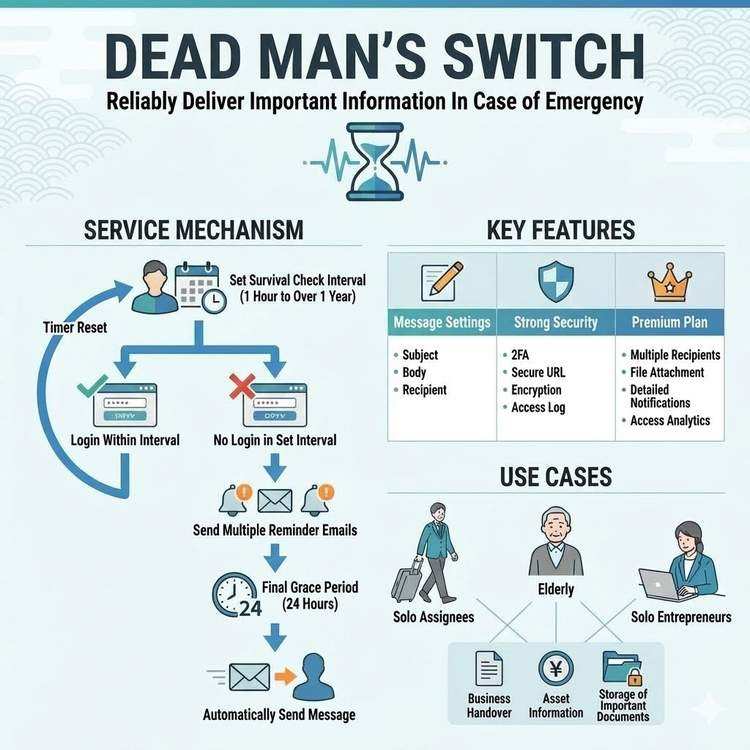
How Dead Man's Switch Works and How to Use It
A detailed explanation of Dead Man's Switch, from its technical mechanisms to practical usage. Understand the life check system and automatic delivery mechanism to use the service with confidence.
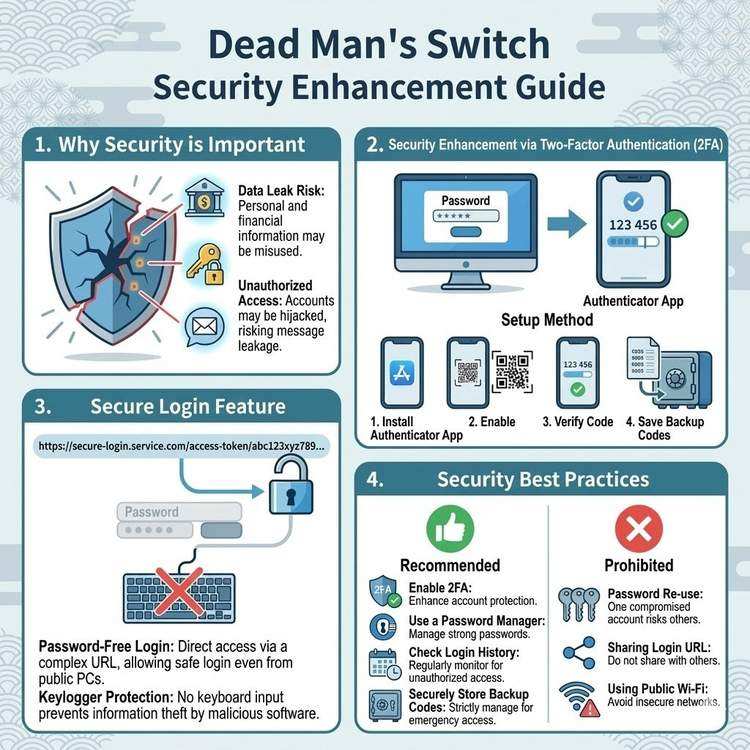
Protecting Your Messages with 2FA and Secure Login
Learn how to protect your critical messages from unauthorized access. A comprehensive guide to setting up and using two-factor authentication and secure login features.
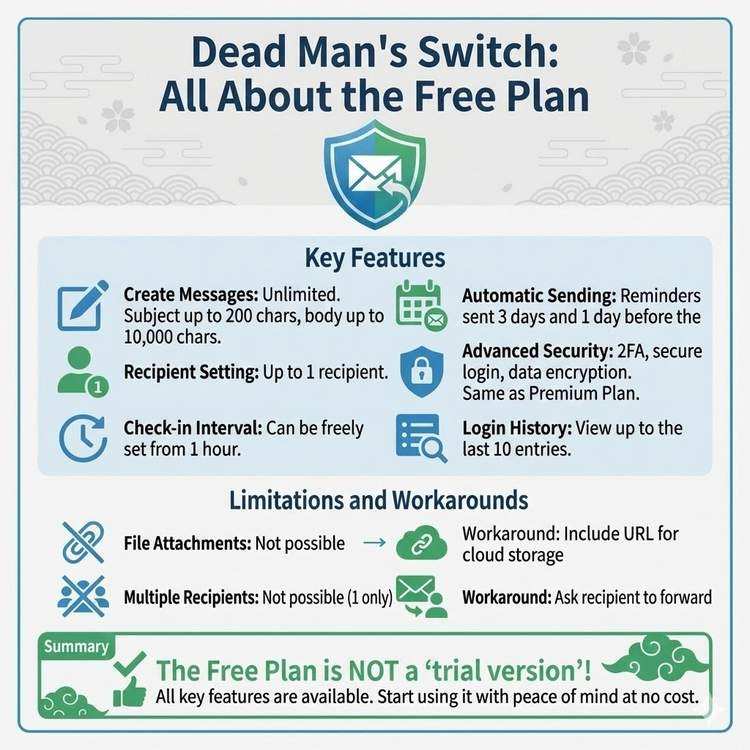
What Dead Man's Switch Free Plan Can Do
Detailed explanation of all features available in the free plan. From basic message sending to advanced security features, discover the full scope of what you can use for free.