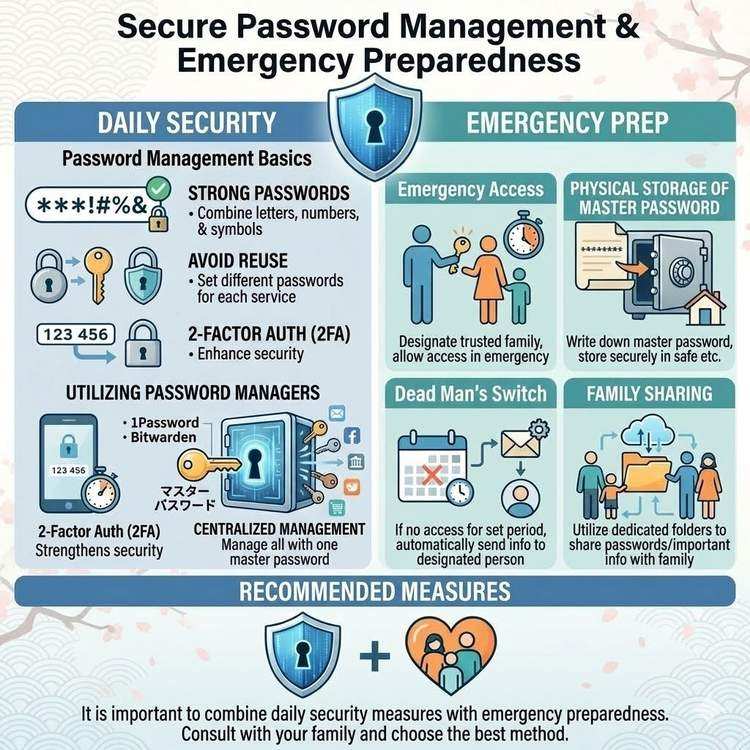
Password Management and Safe Emergency Sharing Methods
The Importance of Password Management
The average person today is said to have over 100 online accounts. Setting different passwords for each and managing them securely is no easy task.
Common Problems:
❌ Reusing the same password
❌ Setting weak passwords
❌ Saving passwords in a text file
❌ Not sharing passwords with family
❌ Family struggling in an emergency
This article explains how to maintain security while creating a system that allows family members to access information when needed.
Basic Principles of Password Management
Principle 1: Use Strong Passwords
Characteristics of Good Passwords:
✅ 12 characters or more
✅ Includes uppercase, lowercase, numbers, and symbols
✅ Not dictionary words
✅ Difficult to guess
✅ Different for each service
Examples of Bad Passwords:
❌ password123
❌ 123456789
❌ tanaka2024
❌ birthday0101
Examples of Good Passwords:
✅ Kf8$mP2@nQ9#vL3!
✅ Tr9&Yn4*Bm2$Wp7!
✅ Qz3#Lk8@Jh5$Vn2!
Tips for Remembering:
Method 1: Phrase Method
"I Love Tokyo 2024!"
→ ILT2024!

Method 2: Word + Symbols + Numbers
"Apple" + "@#$" + "2024"
→ Apple@#$2024

Method 3: Random Generation (Recommended)
Generate with password management tool
→ No need to remember
Principle 2: Don't Reuse Passwords
Why It's Dangerous:
One service gets breached
 ↓
Attackers try other services
 ↓
All accounts at risk

Real Example:
· 2020: 100 million passwords leaked from major e-commerce site
· Users who reused passwords had bank accounts compromised
Solution:
Set different passwords for each service
→ If one is compromised, others remain safe
Principle 3: Enable Two-Factor Authentication
Essential for Important Services:
✅ Bank and securities accounts
✅ Email accounts
✅ Cloud storage
✅ Social media accounts
✅ Password management tools
Using Password Management Tools
Top 3 Recommended Tools
1. 1Password (Paid - Most Feature-Rich)
Features:
· Price: $4.99/month (individual) / $7.99 (family)
· Platforms: Windows, Mac, iOS, Android
· Functions: Password storage, generation, auto-fill
· Family sharing: Up to 5 people
· Japanese support: Full support
Advantages:
- Most reliable
- Emergency access feature
- Family password sharing
- Strong security
Disadvantages:
- Paid service
2. Bitwarden (Free Plan Available - Open Source)
Features:
· Price: Free ~ $10/month (premium)
· Platforms: All platforms
· Functions: Basic management features free
· Open source: High transparency
Advantages:
- Comprehensive free plan
- Security audited
- Self-hosting possible
Disadvantages:
- Somewhat outdated UI
- Family sharing requires paid plan
3. LastPass (Free Plan Available)
Features:
· Price: Free ~ $4/month (premium)
· Platforms: All platforms
· Functions: One device free
Advantages:
- Basic features available on free plan
- Easy-to-use UI
Disadvantages:
- Free version limited to one device
- Past security issues
How to Use Password Management Tools
Initial Setup:
Step 1: Create Account
1. Access official website
2. Register email address
3. Set master password
   ※ This is the one you must never forget

Step 2: Import Existing Passwords
1. Export saved passwords from browser
2. Import CSV file
3. Centrally manage all passwords

Step 3: Install Extension
1. Install Chrome/Firefox/Safari extension
2. Enable auto-fill feature
3. Automatically fills login credentials
Daily Usage:
When creating new accounts:
1. Generate strong password with management tool
2. Auto-save
3. No need to remember

When logging in:
1. Open website
2. Extension auto-fills credentials
3. Login complete
Emergency Password Sharing Methods
Method 1: Emergency Access Feature (1Password)
How It Works:
1. Register trusted person as "emergency contact"
2. In an emergency, they request emergency access
3. After set waiting period (24 hours ~ 30 days),
   access is automatically granted
Setup Process:
1. 1Password > Settings > Emergency Access
2. Click "Add Emergency Contact"
3. Enter their email address
4. Set waiting period (recommended: 7 days)
5. Invitation email sent
6. Setup complete when they accept
Emergency Process:
Family requests "Emergency Access"
 ↓
You receive email notification
 ↓
If not declined within 7 days, auto-approved
 ↓
Family can access your passwords
Benefits:
- Pre-registered family cannot see passwords normally
- Guaranteed access in emergencies
- Can decline immediately if accidental
Method 2: Master Password Sharing (Physical Storage)
Process:
Step 1: Record Master Password
1. Handwrite on paper
2. "Password Management Tool: 1Password"
   "Master Password: ○○○○○○○○"
3. Place in envelope and seal

Step 2: Decide Storage Location
· Safe
· Bank safety deposit box
· With lawyer

Step 3: Inform Family
"In an emergency, the master password for
 the password management tool is in the safe"
Important Notes:
⚠️ Master password is most critical
⚠️ If lost, all passwords become inaccessible
⚠️ Store in multiple locations (balance with risk)
⚠️ Check regularly (beware of paper deterioration)
Method 3: Sharing via Dead Man's Switch
Process:
Step 1: Organize Password Information
1. Password management tool's master password
2. List of important accounts
3. 2FA backup codes

Step 2: Include in Dead Man's Switch Message
Subject: Critical Password Information

Body:
■ Password Management Tool
· Service: 1Password
· Master Password: ○○○○○○○○
· Access Method:
  1. Go to https://1password.com
  2. Email address: user@example.com
  3. Enter master password

■ Important Accounts (in password management tool)
· Bank account (XX Bank)
· Securities account (XX Securities)
· Email account (Gmail)
· Cloud storage (Google Drive)

■ 2FA Backup Codes
Refer to envelope "Backup Codes" in safe
Benefits:
- Guaranteed delivery to family
- Auto-send provides peace of mind
- Content can be updated regularly
Important Notes:
⚠️ Dead Man's Switch account itself must be
   strictly protected with two-factor authentication
Method 4: Family Sharing Feature (1Password Families)
How It Works:
Family shares one account
· Each member has individual login
· Share necessary information via shared folders
· Private information stored in individual Vaults
Setup Process:
1. Subscribe to 1Password Families plan ($7.99/month)
2. Invite family members
3. Create "Emergency" shared Vault
4. Save important passwords to shared Vault
Benefits:
- Can share during lifetime
- Protects each person's privacy
- Immediate access in emergencies
Disadvantages:
- Monthly fee required
- Family needs to learn operation
Specific Password Sharing Scenarios
Scenario 1: Bank Account Passwords
Challenge:
· Don't want to share password with family (prevent misuse)
· But access needed in emergencies
Solution:
Method A: Password Manager + Emergency Access
1. Save bank password in 1Password
2. Set spouse as emergency contact
3. Cannot be viewed normally, only accessible in emergencies

Method B: Dead Man's Switch
1. Include only bank name and account number in message
2. Store password in password management tool
3. Share master password via Dead Man's Switch
Scenario 2: Social Media Accounts
Challenge:
· Absolutely don't want anyone to see during lifetime
· After death, want to convert to memorial account or delete
Solution:
Method A: Facebook Memorial Account Feature
1. Settings > Legacy Contact
2. Designate trusted person
3. They can request conversion to memorial account

Method B: Dead Man's Switch
1. Include SNS login information in message
2. "Please convert to memorial account" or "Please delete"
3. Include specific instructions
Scenario 3: Work Accounts
Challenge:
· Personal password but contains business data
· Needs to be transferred to company
Solution:
Dead Man's Switch + Business Partner Recipient

Recipient: Company supervisor/colleague
Content:
■ Work Accounts
· Google Account: work@company.com
· Password: ○○○○○○○○
· Important Projects: Google Drive "○○ Folder"
· Client Contacts: Spreadsheet "Customer List"

■ Handover Items
· Ongoing Projects: XX Company Project (Due: XX/XX)
· Contact Person: Mr. Yamada (yamada@company.com)
Security Best Practices
What You Should Do
✅ 1. Make Master Password Super Strong
Recommended: 20+ characters
Example: MyS3cur3P@ssw0rd!2024Tokyo
✅ 2. Two-Factor Authentication is Essential
Always set 2FA for password management tools
→ Safe even if master password is compromised
✅ 3. Regular Password Changes
Important accounts: Once per year
Regular accounts: Only when compromised
✅ 4. Backups in Multiple Locations
Master password:
· 1 copy in safe
· 1 copy in Dead Man's Switch
· 1 copy with trusted person (sealed envelope)
✅ 5. Family Education
· Inform about password management tool existence
· Teach basic usage
· Share emergency procedures
What Not to Do
❌ 1. Save in Phone Note App
Risk:
Lost phone = all passwords compromised
❌ 2. Send via Email
Risk:
Email is not encrypted
If email account compromised, passwords leaked
❌ 3. Save to Cloud as Plain Text
Risk:
Saving as "passwords.txt" on
Google Drive, Dropbox, etc. → Dangerous
❌ 4. Browser Save Feature Only
Risk:
If computer breaks, everything lost
Cannot sync across devices
Weak security
❌ 5. Tell Family Verbally
Risk:
They forget
Misheard
No record
Summary: Balancing Security and Convenience
Password management requires balancing security with emergency accessibility.
Recommended Combination:
[Daily Use]
Password Management Tool (1Password or Bitwarden)
+ Two-factor authentication

[Emergency Preparation]
Method 1: Emergency access feature (1Password)
Method 2: Physical storage of master password (safe)
Method 3: Sharing via Dead Man's Switch

This triple protection ensures comprehensive coverage
What You Can Start Today:
Step 1 (Today):
· Register for password management tool
· Save main passwords

Step 2 (This Week):
· Migrate all passwords
· Change weak passwords to strong ones

Step 3 (This Month):
· Configure emergency access
· Explain to family
· Include information in Dead Man's Switch
Protect important information while ensuring your family won't struggle in an emergency. Start preparing today.
Share This Article
About the Author
偽弟 (Gitei)
@danna6583973613 years in IT industry, 11 years as PM/PO. Designed and operated systems with 100M monthly visits, managed teams of 40+ members. Expert in E-commerce and enterprise systems, proficient in cryptographic protocols and authentication/authorization system design. Utilizes Claude Code and Gemini AI for secure, high-quality code implementation.
Learn More About the AuthorRelated Articles
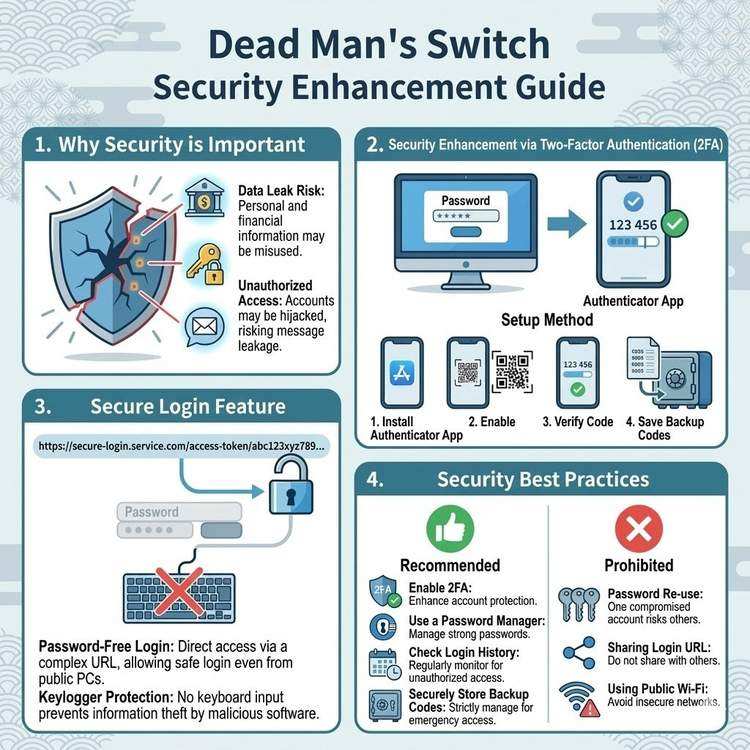
Protecting Your Messages with 2FA and Secure Login
Learn how to protect your critical messages from unauthorized access. A comprehensive guide to setting up and using two-factor authentication and secure login features.
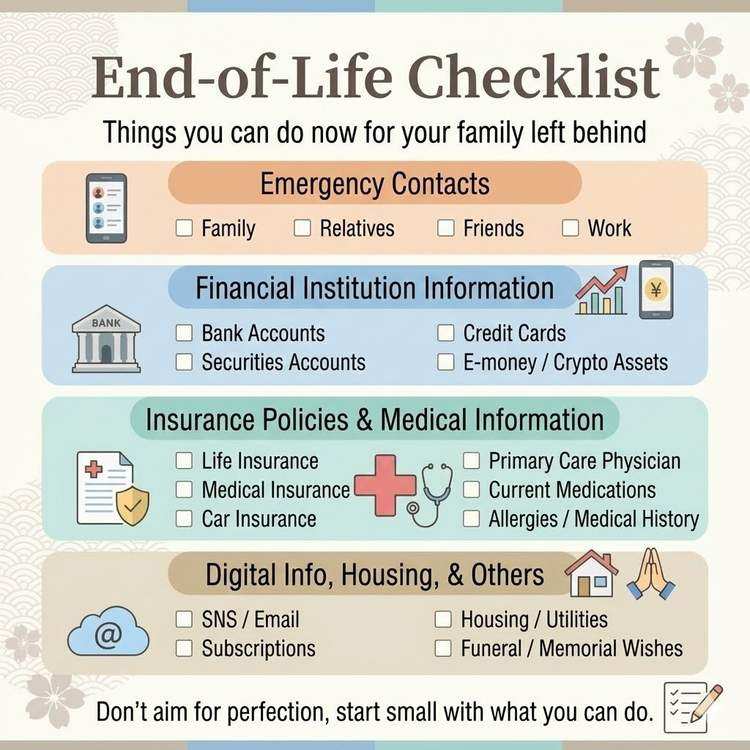
Essential Information Checklist for Your Family
A comprehensive checklist of critical information to share with your family in case of emergency. Follow this guide to ensure nothing important is overlooked.
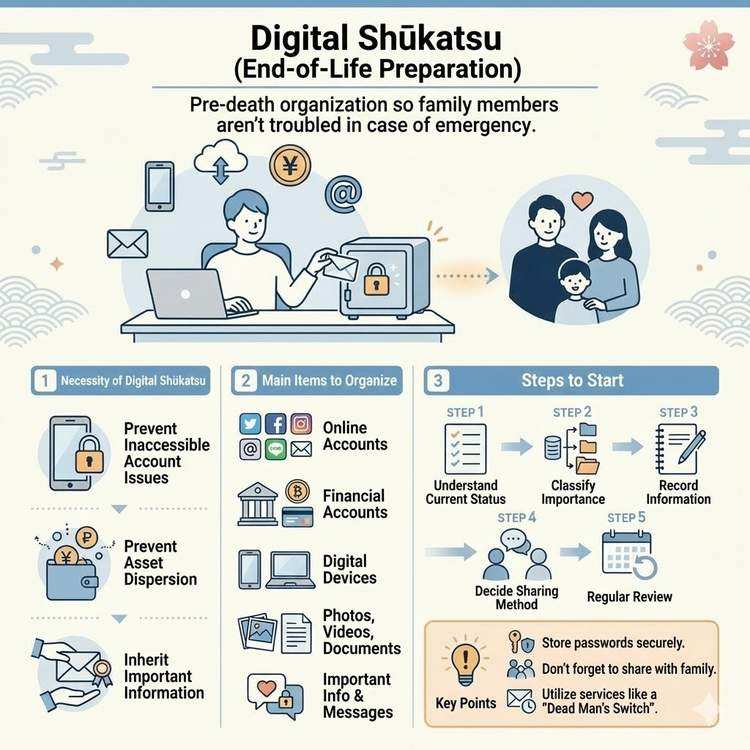
What is Digital End-of-Life Planning? A Complete Guide
Learn about digital end-of-life planning, from basic concepts to practical steps. Discover how to organize your digital legacy and manage important information for your loved ones.